How to Set Up Darshyne's Automation Suite in Foundry VTT
Last updated November 17, 2026
System: D&D 5e · Modules: DAS · Core plus five optional DAS modules · Requires: Foundry VTT V14 and dnd5e 6.0 or later · Last checked: November 15, 2026
Watch the full video: Complete Combat Automation for D&D 5e, DAS Automation Suite · Install everything at once: DAS Automation Suite loadout
Darshyne's Automation Suite (DAS) is a free, open source combat automation suite for D&D 5e on Foundry VTT V14. Core owns the whole combat loop: you click the ground to walk a path, click an enemy to attack, and players roll their saves and reactions on their own screens. It is written for the 2024 rules and official Foundry content, and it is still in beta.
Only DAS · Core is required. Add Combat UI, Loot & Trade, Shadows & Ambience, Animations, and Homebrew one by one if you want them.
Install from FoundryMods: open each module page below and copy its manifest link, or use the FoundryMods loadout once it is linked in the Baileywiki video description. DAS is not in Foundry's package browser, so you install it from a manifest URL. The same links work on The Forge.
TL;DR
- Use Foundry VTT V14 and dnd5e 6.0 or later. As of November 15, 2026, DAS is tested on Foundry 14.370 and dnd5e 6.1. dnd5e 6.0 still works. Back up the world first.
- Turn off the modules DAS replaces (Midi-QOL, DAE, Chris's Premades, and the others listed below), then install DAS · Core first.
- Add the other DAS modules you want, plus your animation sources: JB2A (free or Patreon, not both), Sequencer, and optionally PSFX, Token Magic FX, and Boss Loot / BLFX.
- Enable Core, pick the Full automation level (or start on Assisted), and run the world diagnostic.
- On each computer, set Left-click to move in DAS · Settings, under Mouse and targeting. It is off by default.
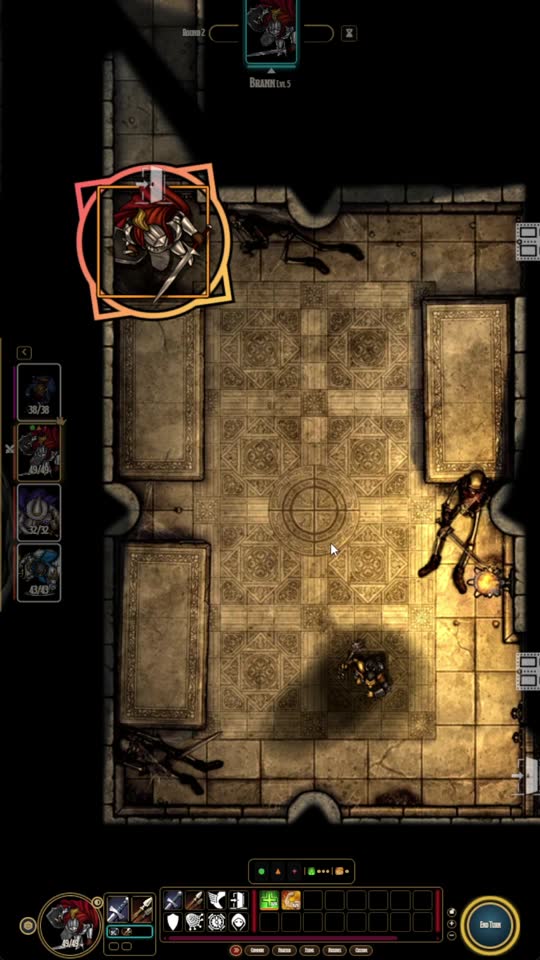
Still from Darshyne's Automation Suite. Credit: Darshyne.
What DAS is
Watch this part: Intro · Watch this part: DAS Core and Companion Modules
DAS is made by Darshyne. The code is MIT-licensed, with nothing locked behind a Patreon. The interface is in English, French, and Brazilian Portuguese.
Core plays attacks, saves, damage, and effects from dnd5e's own data, then adds rules for what the data cannot do alone: opportunity attacks before the move, cover and line of sight, concentration, hiding and Search, factions, vision cones out of combat, climbing and jumping, and more. As of November 15, 2026, the coverage list counts 271 spells, 187 class features, 48 feats, 15 species traits, 92 monster abilities, and 191 items, plus rules built into the engine. Those numbers change as Core updates. Some spells and features are not covered yet, and may still need a click or a roll by hand.
Automation is written for the SRD 5.2 bundled with dnd5e and the official premium modules. Items imported from D&D Beyond, or homebrew items, may not be automated. Use the official item instead, or let the world diagnostic swap D&D Beyond items for you.
Official docs, install links, and demo clips live at darshyne.github.io.
Requirements
Watch this part: Foundry v14 and D&D 2024 Rules
- Foundry VTT V14 (tested on 14.370). DAS does not run on V13.
- The dnd5e system, version 6.0 or later. Tested on dnd5e 6.1. Version 6.0 still works. It does not support Pathfinder 2e or other systems.
- Rules and content: written for D&D 2024 and official Foundry content. Non-SRD spells and features need the official premium module they come from, such as the Player's Handbook.
- A backup of your world before you try DAS on a campaign in progress.
How to install the six modules
Watch this part: Install From the FoundryMods Loadout
Install Core first, then the modules you want. On each FoundryMods module page, copy the manifest URL, then in Foundry go to Add-on Modules, Install Module, paste the link, and install. You can also paste the GitHub manifest URLs below. After that, updates arrive through Foundry's usual Check for Updates.
DAS · Core (required). Foundry id: dnd5e-combat. The rules and combat engine.
https://github.com/Darshyne/dnd5e-combat/releases/latest/download/module.json
DAS · Combat UI (needs Core). Foundry id: darsh-dnd-ui. The action bar, party portraits, and turn strip.
https://github.com/Darshyne/darsh-dnd-ui/releases/latest/download/module.json
DAS · Loot & Trade (needs Core). Foundry id: darsh-loot. Lootable corpses, locked containers, traps, and merchants.
https://github.com/Darshyne/darsh-loot/releases/latest/download/module.json
DAS · Shadows & Ambience (needs Core). Foundry id: dnd5e-lumiere. Contact and light shadows, flyer motion, and darkvision blur. Purely visual: it does not write anything to your world.
https://github.com/Darshyne/dnd5e-lumiere/releases/latest/download/module.json
DAS · Animations. Foundry id: darsh-animations. Plays animations with the animation modules you already have. Foundry will not install an animation source for you; add those separately (see below).
https://github.com/Darshyne/darsh-animations/releases/latest/download/module.json
DAS · Homebrew (needs Core). Foundry id: darsh-homebrew. A no-code creator for automated items. It is early, and it ships no automation packs yet.
https://github.com/Darshyne/darsh-homebrew/releases/latest/download/module.json
Launch the world, open Manage Modules, enable Core (and any others you installed), and save. The welcome screen opens the first time Core runs in a world.
What DAS replaces, what you still need, and what is new
Watch this part: Modules DAS Replaces · Watch this part: What DAS Automates
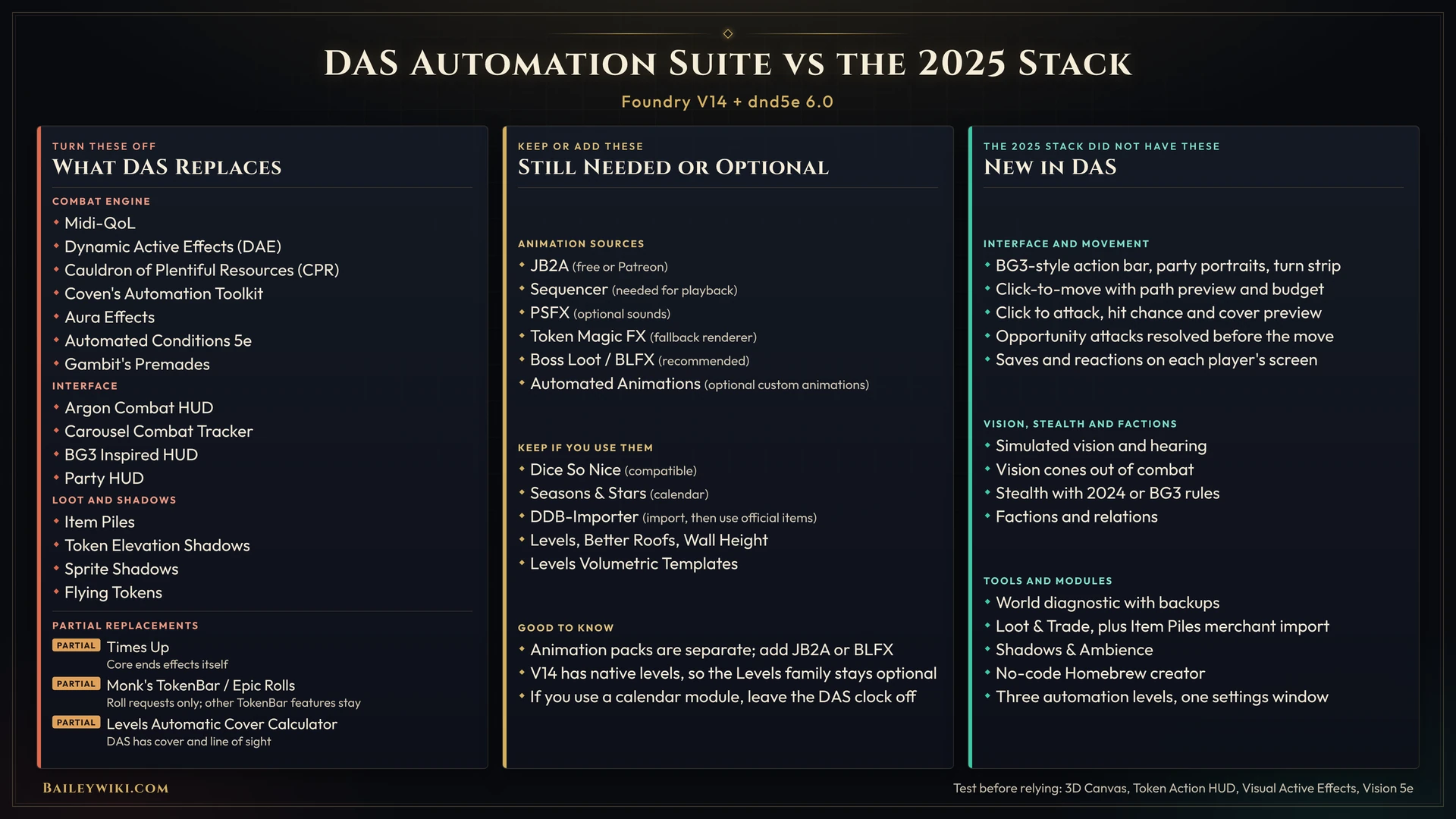
Graphic by Baileywiki. DAS is by Darshyne.
Turn off what DAS replaces
Turn these off before you enable the matching DAS module. Several are also declared conflicts, so Foundry may block them anyway.
If you enable Core, turn off:
- Midi-QOL
- Dynamic Active Effects (DAE)
- Cauldron of Plentiful Resources (formerly Chris's Premades)
- Coven's Automation Toolkit
- Aura Effects
- Automated Conditions 5e
- Argon - Combat HUD and the D&D 5e add-on
If you enable Combat UI, also turn off:
If you enable Loot & Trade, turn off Item Piles and Item Piles: D&D 5e. A bundled macro converts Item Piles merchants.
If you enable Shadows & Ambience, turn off Token Elevation Shadows, Sprite Shadows, and Flying Tokens.
Core also ends its own effects when their duration is up, and the world diagnostic can clean leftover flags from modules such as Times Up and Gambit's Premades. Those two are not listed as official conflicts. If you still use other features from them, test before you leave them on.
Still needed or optional
Watch this part: Modules You'll Still Want
DAS does not replace your animation sources or your 3D dice:
- JB2A (free) or JB2A Patreon. Use one, not both.
- Sequencer, needed for JB2A and BLFX playback.
- PSFX, optional sounds. Without it, animations are silent.
- Token Magic FX, a fallback renderer, and compatible with Shadows & Ambience.
- Boss Loot / BLFX (premium): BLFX Animation Editor Premium plus BLFX Assets Pack-01. Recommended by DAS for animations, not required. A free BLFX editor is also listed on FoundryMods.
- Automated Animations is optional. DAS Animations can work without it. Keep it if you have customised animations; those play first. With BLFX, Automated Animations gives way to BLFX by default.
- Dice So Nice! is compatible. Core waits for its rolls.
- Dice Tray is unrelated to automation and is fine to keep.
DDB Importer still imports characters. After a D&D Beyond import, run the world diagnostic so official items replace the imported copies.
What is new compared with the older Midi stack
- Click the ground to walk a path, with a path preview and a movement budget in combat.
- Opportunity attacks are resolved before the move. Reactions and saving throws open on each player's own screen.
- Hit chance on hover, cover preview, factions, vision cones out of combat, and stealth using 2024 or BG3-style rules.
- A welcome screen and world diagnostic that can clean Midi, DAE, and CPR traces and swap D&D Beyond items, with backups first.
- Combat UI, loot and merchants, purely visual shadows, and a no-code homebrew creator, each as its own module.
The older Baileywiki suite is covered in The Ultimate DnD5e Combat Automation Suite (August 2025), recorded on Foundry V13 and dnd5e 5.1. That stack does not run on the same world as DAS.
Set the automation level
Watch this part: Automation Levels
Open Configure Settings, then DAS · Core, then Open settings (the window title is DAS · Settings). You can also use the DAS Settings button on the sidebar Settings tab. The General tab has the automation level. Changing it reloads the world.
- Essentials: click-to-move, context menus, the turn budget, vision, and the interface. Rolls stay dnd5e's own.
- Assisted: rolls are chained and resolved with general rules: conditions, cover, concentration, 0 HP, opportunity attacks, Hide, and Search.
- Full: the default, and the one to use at the table. Adds per-spell, feature, and monster automation.
A Theatre of the mind switch on the GM token toolbar temporarily goes back to plain dnd5e. Pointer features, including click-to-move, are skipped while it is on.
Use the world diagnostic
Watch this part: World Diagnostic and Migration
The diagnostic is GM only. It is the first thing to run in a world that used to have Midi-QOL, DAE, or Chris's Premades, or that has D&D Beyond imports.
Open it from Configure Settings, DAS · Core, Welcome and diagnostic, or from DAS · Settings, General tab, Run the diagnostic. The welcome screen also opens the first time Core runs in a world. The DAS · Core · GM tools compendium has macros numbered 1 to 6 for the same checks, in the order to run them.
The Scan tab reads the world and changes nothing. Review the list, tick what to fix, and press Repair the selection. Before any repair, each touched document is copied into the world compendium DAS · Backups. If that copy is incomplete, nothing is modified. The Backups tab can Restore a backup exactly; the current state is backed up first, so a restore can be undone.
Typical checks:
- Midi-QOL, DAE, and CPR traces on sheets (player characters are ticked by default).
- Player's Handbook effects, items that lost their effects, and old-format spell scrolls.
- Items imported from D&D Beyond, with an option to keep the official items on the next D&D Beyond sync. Classes, subclasses, and origins are only listed; fix those by hand.
- Creature sheets and leftover basic actions on old Item Piles piles.
Scan, repair, then scan again until it reports nothing to repair.
Click-to-move and opportunity attacks
Watch this part: Combat UI and Left Click to Move · Watch this part: Opportunity Attacks in Combat · Watch this part: Movement Radial and Dash
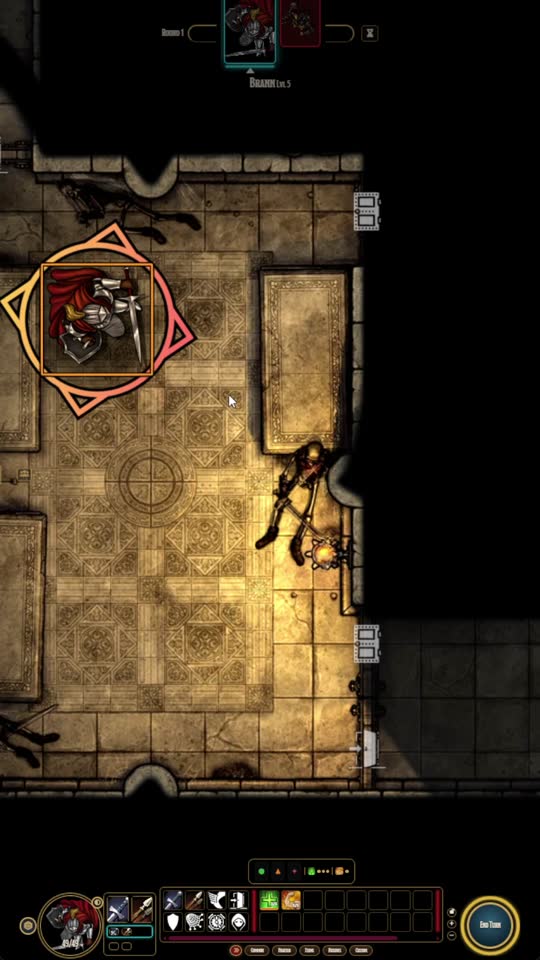
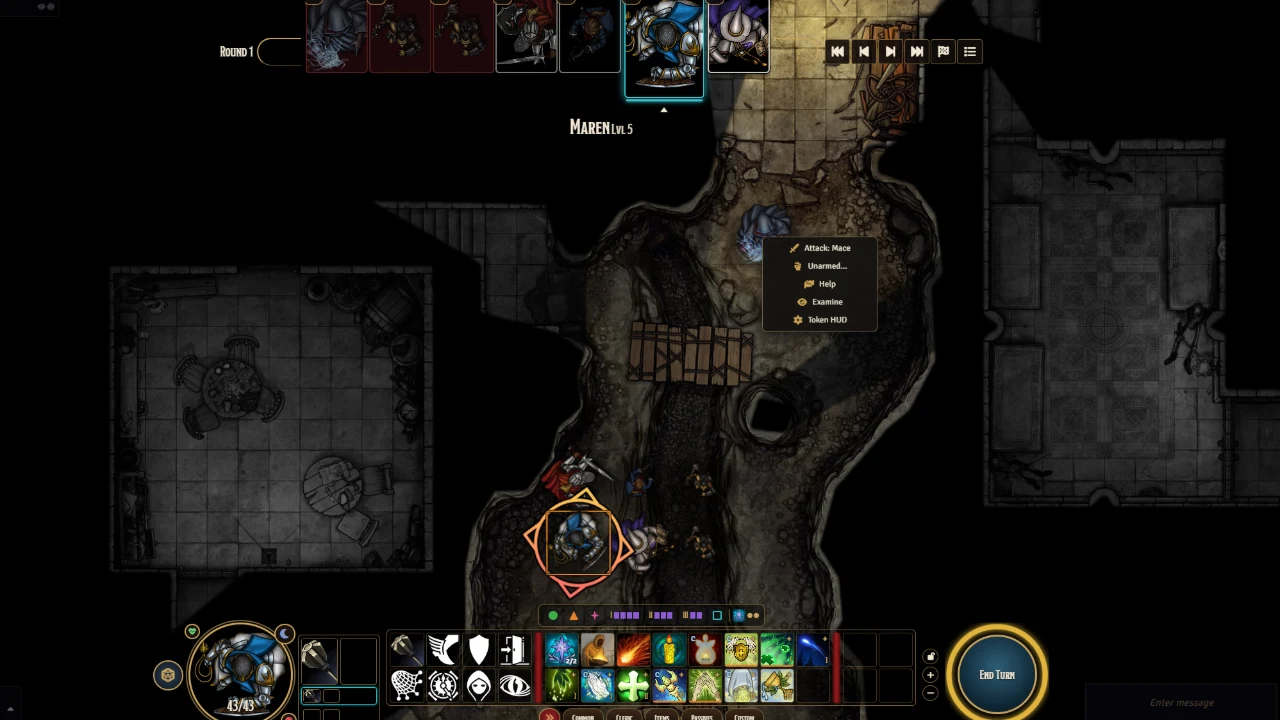
Still from Darshyne's Automation Suite. Credit: Darshyne. Combat UI shows the path and the movement budget.
Left-click to move is off by default. It is a client setting, so each GM and player sets it on their own computer.
- Open DAS · Settings, Mouse and targeting tab.
- Set Left-click to move to Always, or to In combat only.
- Optionally set Basic attack on enemy click to In combat only. This never fires for the GM; a GM left click still selects the token.
- Select exactly one token you own, with the Token Controls Select tool, then click the ground. A short, plain click (no Shift, Ctrl, or Alt) walks the path.
Click-to-move lives in Core, so Combat UI is not required. It works at every automation level. If two tokens are selected, nothing happens.
Right-click the ground with one owned token selected and choose Move here or Jump here. That menu works even when left-click to move is set to Never, which is a fast way to show pathing.
In a started combat (not just a tracker with combatants), Path preview in combat (on by default) draws the route under the pointer, and movement is capped at what the token has left this turn. Combat UI shows "Movement: left / allowed" on the bar. Dash, Disengage, Dodge, Ready, Help, Hide, Escape, and Unarmed Strike are basic actions Core adds to player characters (on by default, not added to NPCs). Use Dash from the sheet or the Combat UI bar to raise that turn's movement.
Opportunity attacks are judged before the move, along the planned path, only at Assisted or Full, and only in a started combat. Disengage (or teleporting) means no opportunity attacks for that move. The Reactions setting on the Combat rules tab controls who gets asked.
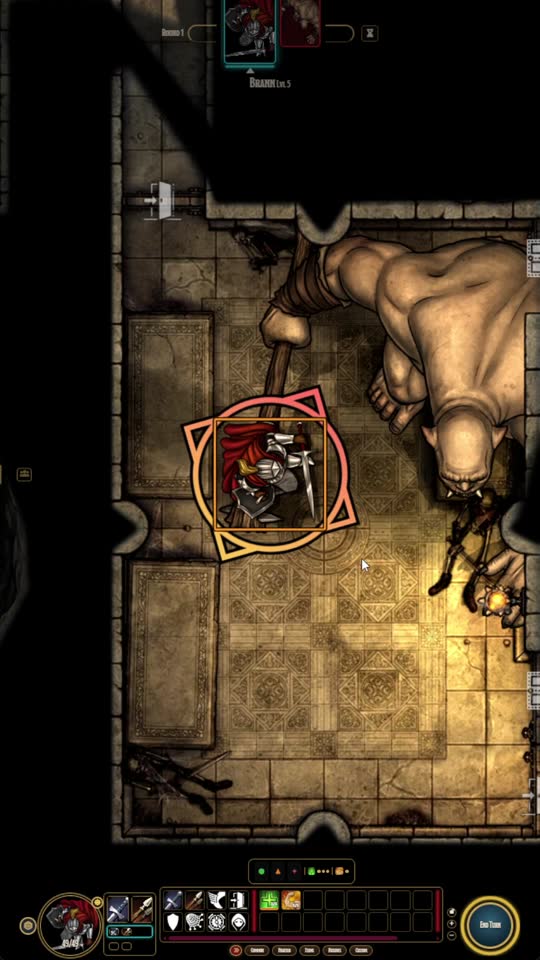
Still from Darshyne's Automation Suite. Credit: Darshyne.
Stealth, vision, and hiding
Watch this part: Vision, Stealth and Targeting · Watch this part: Hide and Stealth
Simulated vision is on by default and works at every automation level. An observer may see a creature, hear it but not see it (a wavy blue outline and an ear; disadvantage, and "a creature you can see" spells are refused), or perceive neither. The Core wiki page Vision and hearing is the best written explainer.
Vision cones out of combat (on by default): outside a started combat, a GM creature only sees ahead of it, in a cone based on the token's rotation. Blindsight, tremorsense, and truesight still perceive all around within range. In combat, vision is 360 degrees, as the rules say. Player characters always see 360 degrees. To sneak past a guard, rotate the guard's token.
Hide needs Assisted or Full. In combat, take the Hide basic action. Out of combat, press Alt+C (the Hide (DAS) keybinding) at no cost. You must be seen by no enemy to hide. The Stealth rules setting offers 2024 (Player's Handbook) (default: DC 15 Stealth check) or BG3 (no roll to hide, progressive detection). Passive Perception against Hide can be Automatic (default), Tell the GM only, or Off.
Factions
Factions decide who is whose enemy beyond token disposition. With no relation set in the matrix, nothing changes: only Friendly versus Hostile tokens are enemies.
Open DAS · Settings, Vision and stealth tab, then Factions and relations. Click a matrix cell to cycle the relation: follows disposition, hostile, neutral, or allied. Drag an actor or folder onto a faction row, or a faction chip onto a token. Optional: Factions: icons on tokens and the toolbar (off by default).
"Suggested relations" proposes some (for example, Undead, Aberrations, and Fiends hate everyone else) but never applies them on its own. Factions feed opportunity attacks, click-to-attack, hiding, Search, flanking, auras, and similar "are enemies" checks. They do not move NPCs for you.
The Combat UI action bar and the Foundry macro bar
Watch this part: Baldur's Gate 3 Style Action Bar · Watch this part: Action Bar Loadouts and Filters
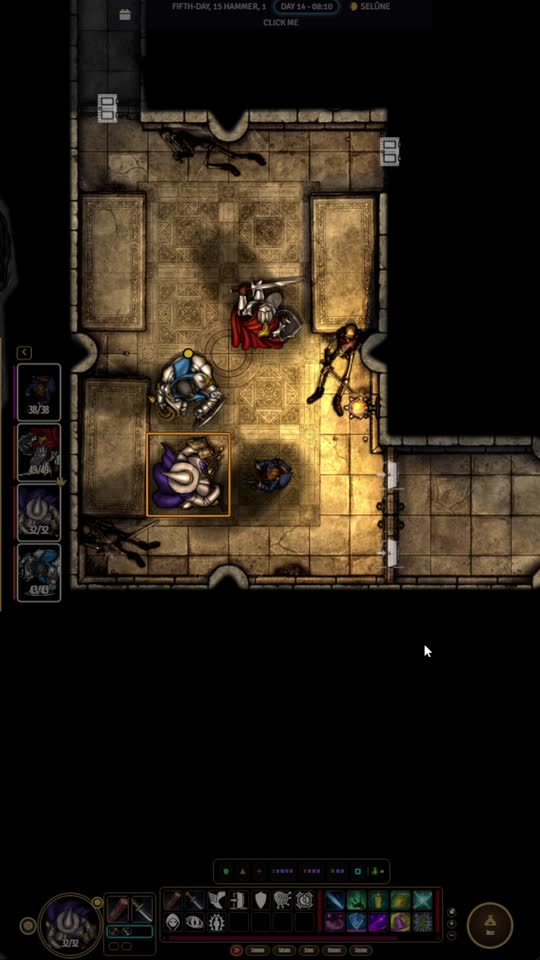
Still from Darshyne's Automation Suite. Credit: Darshyne.
DAS · Combat UI adds an action bar along the bottom, party portraits, and a turn strip. Actions are grouped by tab, a spell's level comes from a drawer, and greyed-out actions tell you why they are unavailable. You can save a layout per character and set up to six weapon sets.
Combat UI hides Foundry's stock macro bar by default. Your macros are not deleted. They still live on the macro bar's own pages, and you can drag macros onto empty DAS action bar cells. Number keys that land on empty cells still run your Foundry macros.
To show the stock bar again, open DAS · Combat UI Settings, Action bar tab:
- Bar: GM keeps the macro bar is a world setting and is off by default. Turn it on and the stock bar stays on the GM's screen, with the DAS bar above it. Players keep their own setting.
- Bar: collapse the macro bar is set per computer and is on by default. Uncheck it to bring the stock bar back on that machine.
Watch out: the DAS bar disappears when no token is selected and you have no assigned character. Depending on the current Combat UI version, the stock bar may stay hidden in that gap too. If you suddenly have no bar at all, select a token, or turn the two settings above so the stock bar remains visible.
Animated token art for summons (JB2A)
Watch this part: Spiritual Weapon
With DAS · Animations and JB2A installed, a summoned creature can use JB2A's animated art as its token instead of the compendium image. Free JB2A is enough. JB2A Patreon adds more weapons, styles, and colours.
This covers Spiritual Weapon, Mordenkainen's Sword, Flaming Sphere, Bigby's Hand (SRD: Arcane Hand), Mage Hand, and Dancing Lights.
Right after the summon, a small window on the summoner's screen offers the looks your animation packs provide, with Same as last summon first. Each character remembers its last choice per spell.
Settings:
- Animated token for summons (JB2A) is a world setting and is on by default.
- Choose the summon's look each time is a per-user setting. Turn it off and the last look is reused without asking.
- In DAS Animations' Animation sources window, the Summons domain must be on, and JB2A must be detected.
A token image the GM already chose is never replaced. Nothing changes if the spell's summon profile points to a world actor, or if you already changed the image of the summoned actor's world copy.
Animation sources
Watch this part: Sequencer, JB2A and Animation Fallbacks
DAS Animations uses whichever sources it finds. Open its Animation sources window and check Detection. Typical setup:
- Install Sequencer.
- Install one JB2A pack: free or Patreon, not both at once.
- Optionally add PSFX for sound, and Token Magic FX as a fallback.
- Optionally add BLFX Animation Editor Premium and BLFX Assets Pack-01. If you use BLFX, tick its "BLFX Custom Auto-Rec Updates" setting, then reload.
- Keep Automated Animations only if you rely on customised animations.
Migrating from the August 2025 automation stack
Watch this part: World Diagnostic and Migration
If your world followed The Ultimate DnD5e Combat Automation Suite (August 2025), it is on Foundry V13 and dnd5e 5.1 with Midi-QOL. DAS needs V14 and dnd5e 6. Work on a copy first.
- Back up everything: a full copy of the Foundry User Data folder (or a Snapshot), plus the world.
- Disable the old combat stack in the world before you upgrade, so V14 never loads it: Midi-QOL, DAE, Times Up, CPR, Gambit's Premades, Aura Effects, Automated Conditions 5e, Argon, Carousel, Item Piles, and the other modules in the replace list above.
- Upgrade Foundry to V14, then update the dnd5e system to 6.0 or later. Launch the world and let both migrations finish. Update every module you are keeping to a V14-compatible version.
- Install DAS, Core first, then the modules you want, plus your animation sources.
- Enable Core, pick Full (or Assisted while you ease in), and run the world diagnostic. Check that the DAS · Backups compendium filled up.
- For D&D Beyond characters, run the diagnostic's D&D Beyond group and tick "Keep the official items at the next D&D Beyond sync" if players will keep syncing. Fix classes, subclasses, and origins by hand.
- For Item Piles merchants, enable Loot & Trade, open the DAS · Loot & Trade · GM tools compendium, and run Import Item Piles merchants. Click Report first, then Import. Then disable Item Piles, or its own windows will also open on those merchants.
- Settings pass: automation level, Left-click to move and Basic attack on enemy click (tell players to set their own), Reactions, Stealth rules, Passive Perception against Hide, vision cones, and factions if you want them.
- Test with a GM client and a player client: click-to-move in a started combat, an opportunity attack versus Disengage, a player save (Fireball), Shield as a reaction, Hide and Search, a D&D Beyond character's attacks, and a merchant if you converted one.
If it goes wrong, restore from the diagnostic's Backups tab, or roll back to your full backup and V13.
Common problems
Click-to-move does nothing. Left-click to move is a client setting and defaults to Never. Set it to Always or In combat only, select exactly one owned token with the Select tool, and use a short plain click. In combat only also needs a started combat. Turn Theatre of the mind off.
Players have no DAS bar and no macro bar. Select a token, or assign a character. To keep Foundry's macro bar visible, use the two Combat UI Action bar settings above.
Spiritual Weapon (or another summon) shows the compendium art. Install DAS Animations and JB2A, confirm Detection sees JB2A, and keep Animated token for summons (JB2A) and the Summons domain on. If you already changed that actor's token image, or pointed the spell at a world actor, DAS will not overwrite your art.
Attacks or spells from a D&D Beyond character do little or nothing. General rules may still apply, but per-item automation often needs the official item. Run the world diagnostic's D&D Beyond repair. Non-SRD content also needs the official premium module.
Midi-QOL, Argon, or Item Piles will not run with DAS. That is expected. They conflict with Core, Combat UI, or Loot & Trade. Turn them off, then run the diagnostic to clean leftover traces.
Both free and Patreon JB2A are active. Detection will flag this. Disable one of them.
A merchant opens two windows. Item Piles is still enabled. Disable it after you convert the merchants.
The world is on Foundry V13 or dnd5e 5.x. DAS will not load. Upgrade to V14 and dnd5e 6 on a backed-up copy.
Related guides
- Best D&D 5e Combat Automation Modules (the older Midi-era module list)
- Best D&D 5e Modules for Foundry VTT
- D&D 5e Quality of Life modules
- How to upgrade to Foundry V14 safely · Check Foundry module compatibility
- D&D 5e on Foundry VTT
- Getting started with Foundry VTT · All How To guides
- Official site: Darshyne's Automation Suite · Coverage list
- Earlier suite video: The Ultimate DnD5e Combat Automation Suite (August 2025)
Featured modules
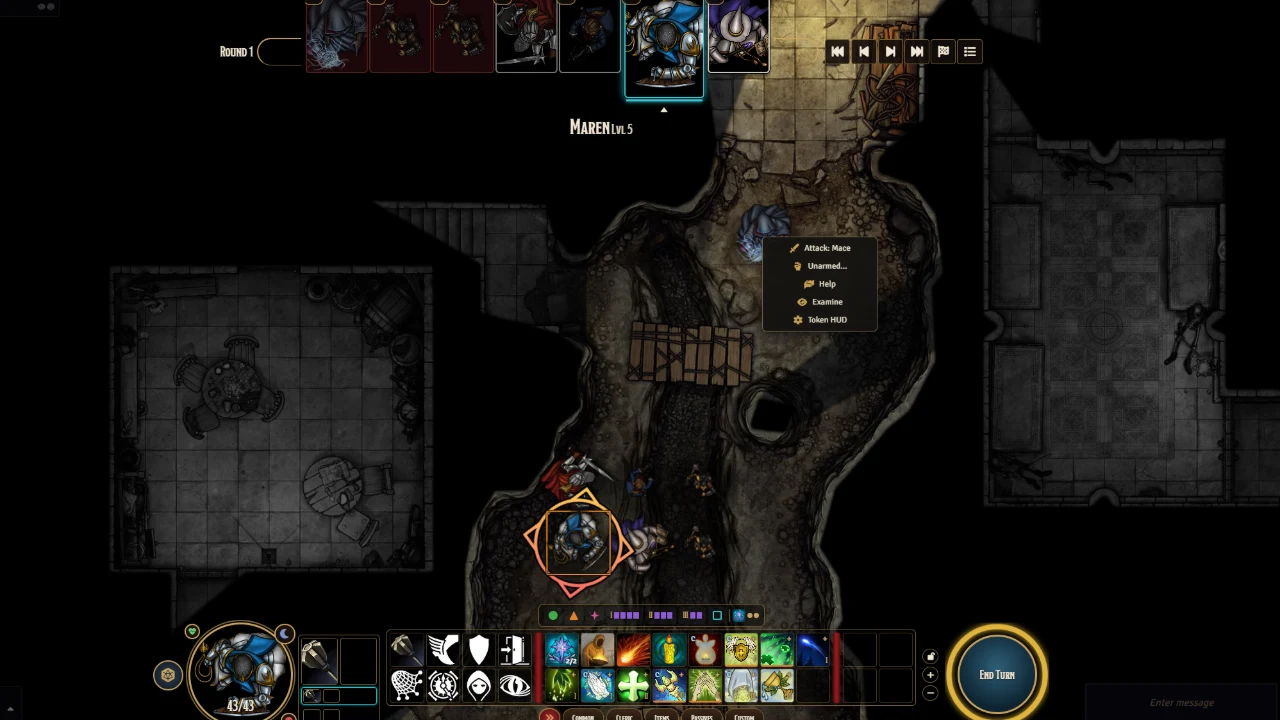
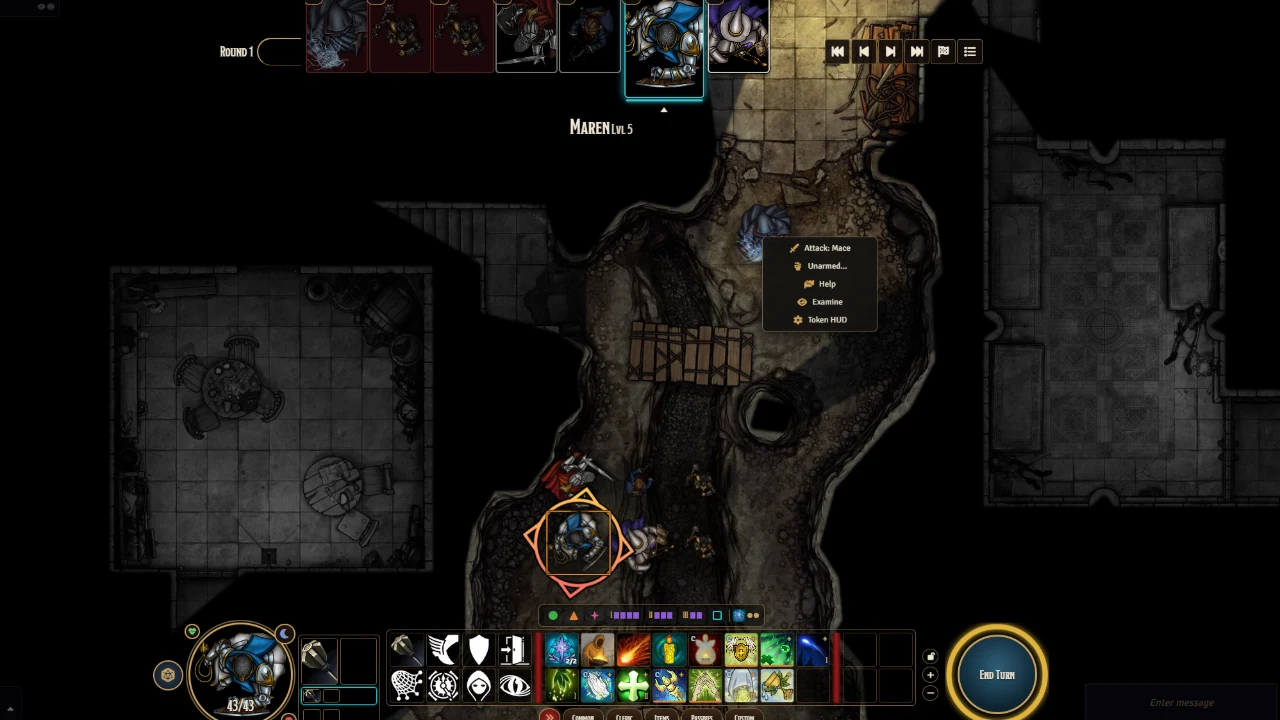
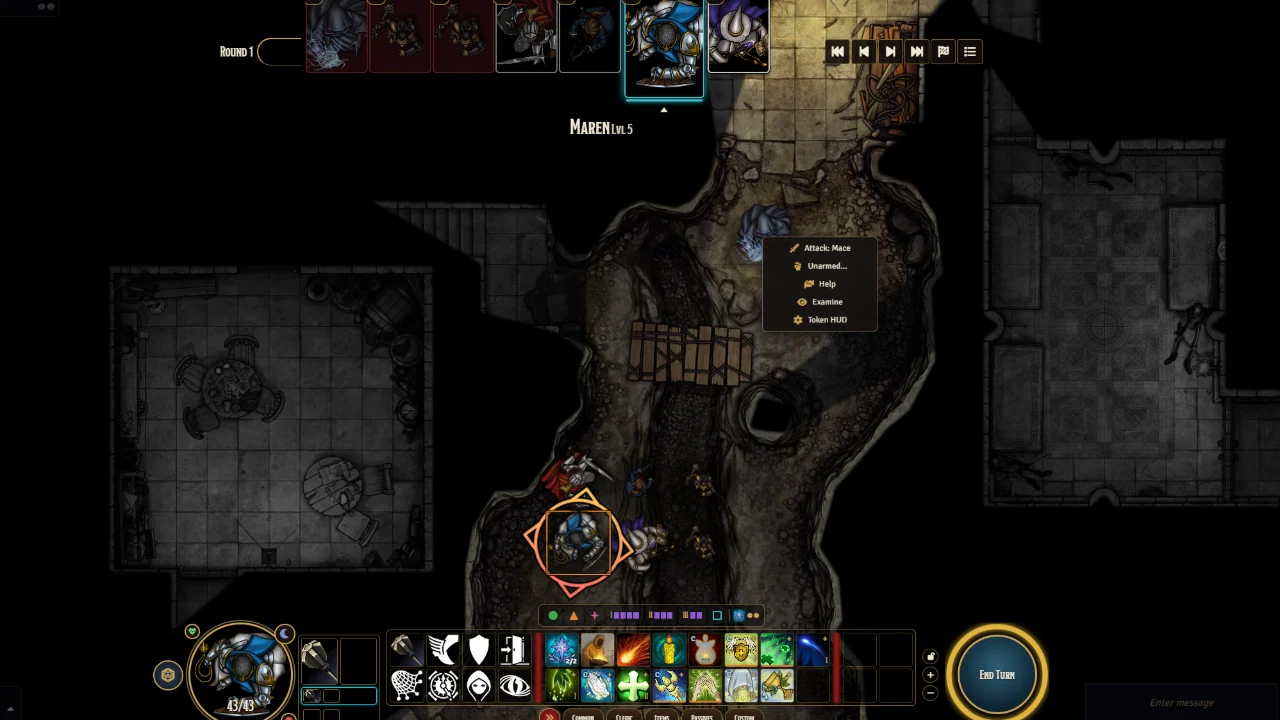
Frequently asked questions
What is DAS, and is it free?
Yes. DAS is Darshyne's Automation Suite, a free, MIT-licensed combat automation suite for D&D 5e on Foundry VTT V14. There is no Patreon, and nothing is locked. It is still in beta.
Does DAS work on Foundry V13 or with Pathfinder 2e?
No. It needs Foundry V14 and the dnd5e system, version 6.0 or later. It does not support Pathfinder 2e or other systems.
Do I need all six modules?
No. Only DAS · Core is required. Add Combat UI, Loot & Trade, Shadows & Ambience, Animations, and Homebrew if you want those features.
Why doesn't click-to-move work?
Left-click to move is a client setting and defaults to Never. Set it to Always or In combat only under DAS · Settings, Mouse and targeting, then select one owned token and click the ground.
Where did the Foundry macro bar go?
DAS · Combat UI hides it by default. Your macros are still there. In Combat UI Settings, on the Action bar tab, turn on Bar: GM keeps the macro bar, or turn off Bar: collapse the macro bar on that computer.
Why does Spiritual Weapon use the compendium art instead of a JB2A animation?
You need DAS · Animations and JB2A, with Animated token for summons (JB2A) left on. After you cast the spell, pick the look in the window that appears. DAS will not replace a token image you already set yourself.
Can I keep Midi-QOL or Chris's Premades installed with DAS?
No. Core replaces that combat loop. Turn them off, then run the world diagnostic to clean leftover traces from sheets.
What about characters imported from D&D Beyond?
Import as usual, then run the world diagnostic's D&D Beyond repair so official compendium items replace the imported copies. Per-item automation may not run on the imported versions.