How to Edit Maps and Tokens Mid-Session With AI Spot Edit in Foundry VTT
Last updated October 27, 2026
System: any · Module: Baileywiki Content Module · Last checked: October 27, 2026
AI Spot Edit brings the same image APIs that power BatlGrid straight into Foundry Virtual Tabletop, through the Baileywiki Content Module. Click the spot edit wand next to a Baileywiki image path, describe the change, and the new art is swapped in for you. It works on tokens, tiles, lassoed areas of a scene, scenescape pieces, TurnSheet tokens, and Landing Page tiles, so you can cover a village in snow, damage a ship, or redraw a prop the moment your story needs it.
TL;DR
- Install the Baileywiki Content Module, sign in with your Baileywiki account, and make sure you have credits.
- Click the spot edit wand next to any Baileywiki image path, or lasso an area of a scene from the tile controls.
- Describe the change, pick Gemini or OpenAI, and turn on background removal if you want a movable tile back.
- Review, iterate or upscale, then accept. The new image is saved in a Baileywiki Content spot edit folder and swapped in automatically.
▶ Watch this part: "Intro: AI Spot Edit Inside Foundry" (0:00)
What AI Spot Edit is for
▶ Watch this part: "Snow, Vines, Damage and On-the-Fly Storytelling" (0:57)
Spot Edit is built for on-the-fly storytelling. You can cover anything in snow or creeping vines, damage it, or weather it, so a location can change over the course of a campaign. It also works on every scenescape element and on your TurnSheet tokens, which helps when a scene calls for a pose you didn't plan for. You can even make changes from the sidebar while you play.
Get access: install and authenticate
▶ Watch this part: "Available in the Baileywiki Content Module" (0:45)
AI Spot Edit ships in the Baileywiki Content Module. Install it, open the module, and sign in with your Baileywiki account. As long as you're the GM and have credits, the spot edit tool unlocks on any visual Baileywiki asset. Free accounts get 30 credits each month, topped up on the 1st, and unused free credits don't roll over. That covers about 7 edits (6 with background removal).
Spot edit a token
Double-click a token, open its appearance settings, and look for the image path. Anywhere you see a Baileywiki image path, there's a small spot edit wand next to it. In the video, a token becomes a balrog with flaming wings, a sword, a black body and horns, just from a one-line prompt.
Choose a model and remove the background
▶ Watch this part: "Gemini or OpenAI, and Background Removal" (2:19)
Pick Gemini or OpenAI for each edit. Turn on background removal when you want the result back without a background, as you would for a token or a tile you plan to move. You can zoom in on the result before you decide.
Accept, and where the files go
When you accept, the new artwork is imported and the image path is replaced. Edited files are stored in a Baileywiki Content spot edit folder, and you can keep making spot edits on top of them.
Edit part of a scene with the lasso
▶ Watch this part: "Lasso a Tile Baked Into the Scene" (3:04)
Some details are baked into the scene image, like the tents in the camp demo. Because they're Baileywiki content, you can still change them: open the tile controls, pick the same spot edit icon, and lasso the area. Here a tent becomes an orcish design with thick leather and metal trim, and background removal turns it into a tile you can move around.
Gemini or OpenAI?
Experiment with both. In Baileywiki's experience, Gemini tends to be better at modifying an existing image, while OpenAI tends to generate better-looking new images.
Remove something without deleting it
▶ Watch this part: "Remove a Tile Without Deleting It" (4:21)
You can't cut a baked-in object out of the scene underneath, but you can cover it. Lasso the object, ask to remove it entirely, and leave background removal off so the result comes back as the exact same shape. Gemini handles this kind of edit well. Accept it and you have an empty spot where the tent used to be. Delete that tile later and the tent shows up again, which is handy for scenes that change over time.
▶ Watch this part: "Empty Spot, Move the Tent, Drop Shadow" (5:33)
Credits and upscaling
Each generation costs 4 credits, and background removal adds 1 more. The cost is the same whether you pick Gemini or OpenAI, and the dialog shows it before you run. Spot Edit uses the same Baileywiki credits as the other Baileywiki AI and Software Tools. Click Upscale when you want more detail, especially for a larger area.
Why not edit the whole map?
There's a spot edit wand for the whole map too, but at full battle map size the result comes back pixelated, because the image models can't handle images that large. Stick to tiles and lassoed areas.
Scenescapes: change the story in a room
In the Warm Tavern scenescape, a table of patrons becomes a group of armored orcs getting drunk, returned as a tile with background removal. A wanted poster is rewritten to feature a brigand named Arturo.
Iterate on a result
Not quite right? Click Iterate to carry the generation into a new prompt. Here the orcs get playing cards in their hands, and accepting swaps the new version straight into the scene. You can still make changes in MadProps too; Spot Edit just gives you another place to do it.
Landing Page tiles
The Writing Desk landing page from the Baileywiki Landing Page module is built from interactive tiles, which makes it a perfect target. The spell book becomes a written notebook that reads more like a quest log, and the map is redrawn as a different region with new fantasy names, including a city of Turago. The new art replaces the old tile exactly and stays interactive.
The bowl of crystals becomes a bowl of old human teeth, and the video also tries a hand crossbow, which may need an iteration or two.
- Go deeper: How to use the Baileywiki Landing Page module · ▶ Watch on Baileywiki: "Intro: Landing Page 3.0" (0:00)
Ships and vehicles
You can edit any piece of a Baileywiki ship. The dragon masthead becomes pure gold with glowing green eyes, and the sails turn black with green stripes.
Use the magenta mask
▶ Watch this part: "Gold Cannon With a Magenta Mask" (11:04)
A cannon becomes solid gold with a glowing green gem placed in its magenta area. The whole piece is sent to the image model as a composite, so you can point the edit at the masked part.
Cut a hole in the deck
Lasso part of the deck and ask for a hole filled with pure white, like the rest of the background. The result even adds broken boards, and once accepted you can see straight through to the deck below.
Why white backgrounds help
Spot Edit puts a white background behind everything it sends to the model, which makes background removal cleaner afterward. When you ask for empty space, asking for pure white works with that.
Copy and link the results
An accepted edit is a normal tile, so you can copy the gold cannon across every ship. Then link the cannons to the ship's connected pieces so they move together when you drag the ship.
Works on Baileywiki assets only
▶ Watch this part: "Baileywiki Assets Only, and Outro" (13:57)
AI Spot Edit is designed only for Baileywiki assets. When you lasso an area, anything it doesn't recognize as a Baileywiki asset is left out, and tiles from other artists don't get the spot edit wand in their image path.
Modules that help
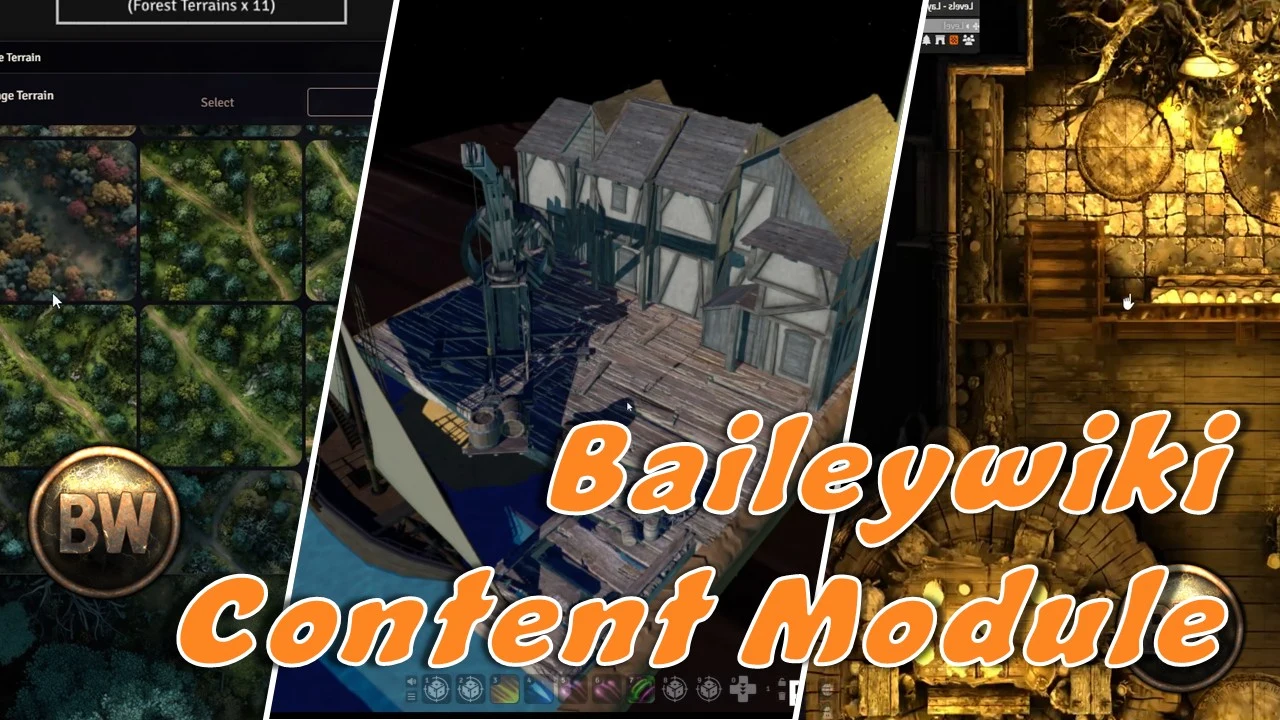
Baileywiki Content Module: where AI Spot Edit lives, along with Baileywiki's 2D and 3D content.
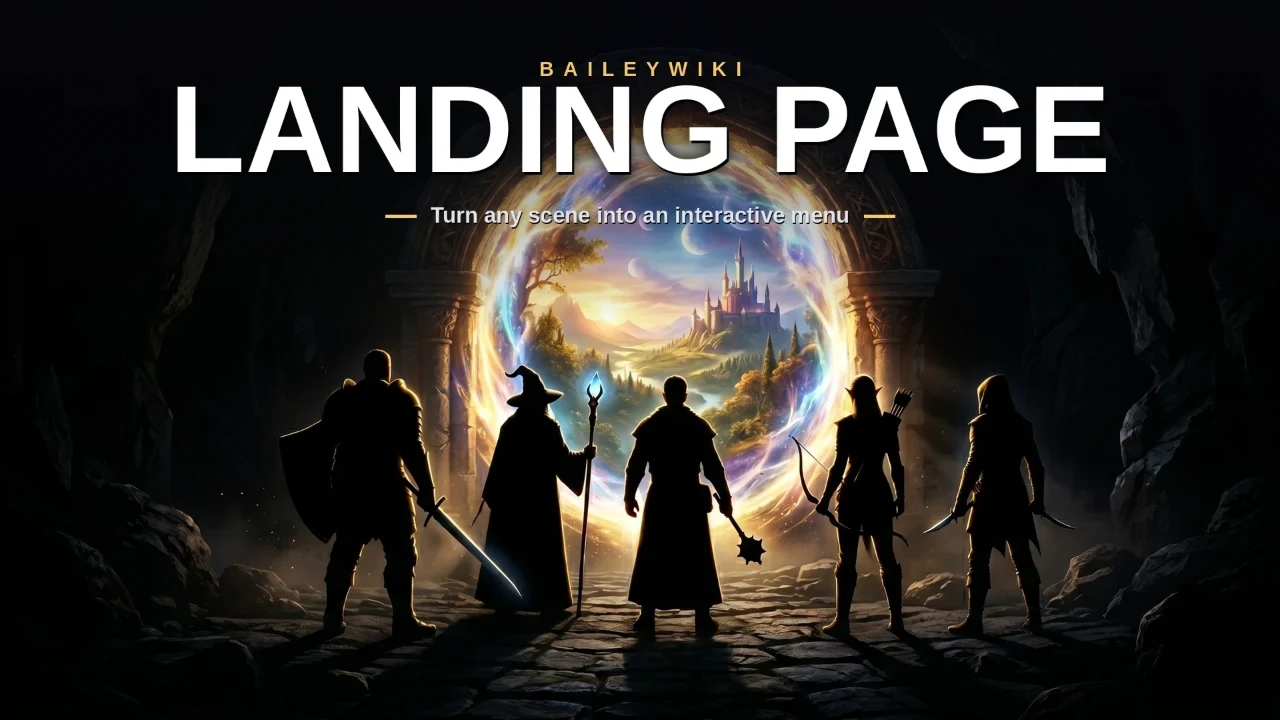
Baileywiki Landing Page: interactive landing pages like the Writing Desk, all editable with Spot Edit.
Baileywiki Mass Edit: listed in the video description as used or referenced. ▶ Watch on Baileywiki: "Mass Edit" (8:37)
Related guides
Featured modules
Frequently asked questions
What is AI Spot Edit in Foundry VTT?
It's a feature of the Baileywiki Content Module that lets you change Baileywiki images inside Foundry by describing the edit. It covers tokens, tiles, lassoed areas of a scene, scenescape pieces, TurnSheet tokens, and Landing Page tiles.
Who can use AI Spot Edit?
Any GM signed in to the Baileywiki Content Module with a Baileywiki account that has credits, including free accounts. Players can't run it.
Does it cost credits?
Yes. Each generation costs 4 credits, and background removal adds 1 more, whichever model you pick. It uses your regular Baileywiki credits, and the dialog shows the cost before you run an edit. Free accounts get 30 credits each month, topped up on the 1st, and unused free credits don't roll over. Failed generations are refunded.
Should I pick Gemini or OpenAI?
Try both. Gemini tends to be better at modifying an existing image, and OpenAI tends to produce better-looking new images.
Can I edit a whole battle map at once?
You can try, but large maps come back pixelated. Lasso the area you want to change instead.
Can I use it on art from other creators?
No. It only works on Baileywiki assets, and other artists' tiles don't get the spot edit wand.