How to Generate Furnished 3D Rooms and Buildings in Foundry VTT
Last updated November 4, 2026
System: any · Module: Baileywiki 3D Building Generator · Requires: Foundry VTT v13 or v14 · Last checked: November 4, 2026
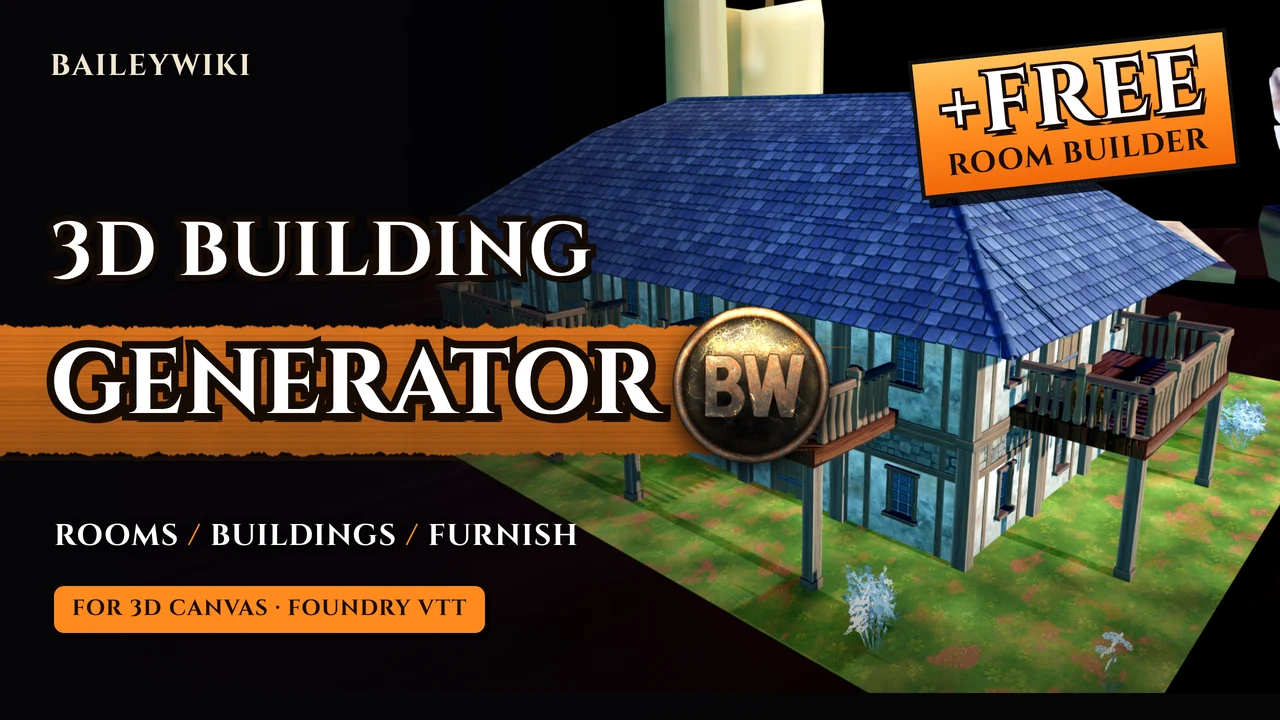
The Baileywiki 3D Building Generator fills your 3D Canvas scenes with complete buildings in a few clicks: walls, floors, doors, windows, roofs, furniture, lights, stairs, second floors and gardens. Draw a box, pick an interior or a building type, and press Generate. You can make a single furnished room, furnish rooms you already built, or generate a whole manor, inn, gothic temple or wizard's abode, and every result is ready to walk through in 3D.
Install the loadout: Baileywiki 3D Suite loadout, with the generator, 3D Canvas and the Content Module
TL;DR
- Install the module from its FoundryMods manifest and accept the dependencies (3D Canvas and the Baileywiki Content Module).
- Enable it in Manage Modules, open a scene with 3D Canvas on, and open the tile controls.
- Pick the building generator, sign in to Baileywiki, choose an interior, look, furniture density, sides, includes and lights.
- Draw your area and press Generate. Use Furnish for rooms you already built, Clear Last Building to undo, and Purge to remove every generation.
What you need
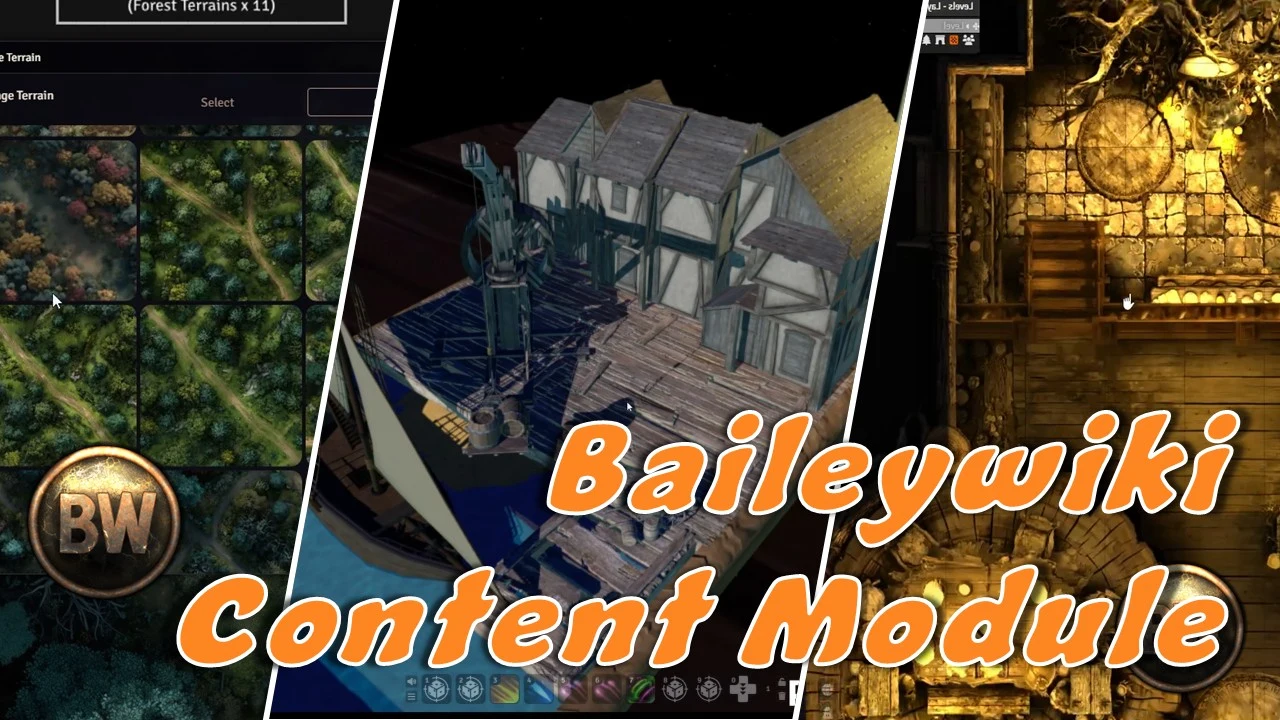
The generator runs on top of two modules you may already have. 3D Canvas does the 3D rendering, and the Baileywiki Content Module supplies every model the generator places. It works on Foundry VTT v13 and v14.
The module is free to install. Sign in to Baileywiki and you can try Room mode with a few motif styles for free: the Chapel / Shrine and Crypt / Tomb interiors, with 150 models included. Building mode and every other interior require a premium Baileywiki account.
Download and install the module
Open the Baileywiki 3D Building Generator page on FoundryMods and copy the manifest link. In Foundry, go to Add-on Modules, click Install Module, paste the manifest link into the box at the bottom and click Install. Foundry offers to install any missing dependencies, so say yes. That covers 3D Canvas and the Baileywiki Content Module.
Launch your world, open Game Settings, then Manage Modules, and enable Baileywiki 3D Building Generator. Foundry asks to enable its dependencies too. Accept, save the module settings and let the world reload. To test it, open a scene with 3D Canvas turned on.
The building generator tools
In the video, Tim starts by deleting the terrain 3D Canvas spawns by default. Then open the tile controls. Below the palette you'll find four new tools:
- Building generator: draw and generate anything from a single room to an entire building.
- Furnish: fill existing rooms or areas with furniture and interior decoration.
- Clear last building: remove the most recent generation.
- Purge: remove every generation on the scene.
Generate a single room: interior and look
The first time you open the generator, it asks you to sign in to your Baileywiki account. Then work through the panels:
- Interior: beer gardens, storage rooms, workshops, bathrooms, parlors, inns, bedrooms, kitchens and more, or an empty room to furnish yourself later. The video uses a storage cellar.
- Look: the walls and flooring. Leave both on Auto, or pick a style to match an existing building in your scene.
- Furniture: sparse, normal or cluttered. Cluttered makes rooms feel lived in.
- Surroundings: an environmental border of grass, trees and bushes, or none.
- Roofs: the roof style, which only matters when roofs are turned on under Include. You can also set the wall height.
Sides and what to include
Sides follow the direction your 3D camera faces when you draw the room. S (south) is the edge of your rectangle closest to the camera, so a south door and an east door land on the bottom and right edges from your point of view. Keep that in mind when you place doors and other side options.
The Include panel decides what gets generated. 3D walls and floors are the essentials, and you can toggle furniture, rugs, windows, roofs and trapdoors. Flip Walls turns the more decorated side of certain wall pieces outward, which is handy for a detailed exterior. Stairs are off by default: click once for stairs up to a second floor, or again for stairs leading down.
Lights and performance
You can switch lights off completely if your machine struggles, but you usually don't need to. The generator scales furniture and lighting so a single generated building stays at D+ or better on the 3D Canvas performance scale. To check, open the 3D Canvas tool and run the performance report. An empty scene starts at A+ and the grade drops as you add assets.
Lighting options:
- Amount: Few adds one light per room. Normal adds lights in each room plus a few extra sources, and torches get animated fire. Every Lamp gives every light source in the room its own light.
- Animation: none, a gentle flicker or a stronger torch flicker.
- 3D flames: real fire effects on torches and candles, each with its own lighting and shader.
- Shader: neutral, soft halo, flat glassing or adaptive. Adaptive picks a suitable color and shader for each type of light.
More lights mean longer generation. Even on a modest machine, a single room or building shouldn't take more than two or three minutes. Larger areas and multi-floor buildings take longer, and generation time depends on your machine.
Walk through the storage room
The finished storage cellar has stairs going up, doors on the south and east sides, and every setting from the panels. Drop an actor with a torch into the scene and you can see inside through the windows as they approach. Click a door to open it. Assets that support animation, like doors and grandfather clocks, are placed as animated versions, along with the torch and candle effects.
Empty rooms
For a bare shell, choose an empty room and turn off roof, stairs, furniture and rugs. With only a handful of assets it generates almost instantly, and it's set up just like the furnished room, doors included, so you can walk straight in.
Furnish rooms you already built
Furnish mode fills rooms or buildings you already made. Draw the area, choose an interior (the free Chapel and Crypt interiors work here too), and set the options:
- Tell the generator which edges of the area are walls, so it knows where cupboards and crates can go.
- It works around existing objects. A statue in the middle of the room won't have furniture placed inside or through it, and existing doorways stay clear.
- Seed lets you reuse the same furnishing layout later, in this room or elsewhere. Leave it on random for a fresh layout.
- Floor elevation sets the height for the furniture, which is useful when furnishing an upper floor.
Press Furnish and let it fill the room. If something lands in the wrong spot, move it by hand, and report bugs in the Baileywiki Discord. Remember that Clear Last Building only removes the latest generation (here, just the furniture). Use Purge to remove all generations, buildings and furnishings alike.
Generate a whole manor
Building mode adds a few options on top of the single-room panels:
- Small rooms with inner doors: animated doors between rooms. Turn it off for open doorways.
- Irregular rooms: L-shaped and T-shaped rooms for a more natural floor plan.
- Garden yard: surroundings that suit the building. Manors, keeps and houses get gardens, inns and taverns get benches and drinks, and temples can get tombs and graveyards.
- Hidden room: a secret room behind animated sliding bookshelves.
- Upper floor and attic ladder, plus side options for up to four balconies per side and where the garden goes.
The generator lays out and furnishes the ground floor, then the upper floor, then adds the roof, and finally the garden and balconies. For a manor the garden includes fountains, statues, bushes and orchard pieces. Balconies are only placed where the layout has room for them, otherwise they're skipped. Lighting is usually the slowest step. In the video, the finished manor's performance report comes back at D+, as promised.
Manor walkthrough and the hidden room
▶ Watch this part: "Manor Walkthrough and Hidden Room" (12:18)
Walk your hero through the front door and every room is furnished and ready to explore. Click the bookshelves to slide them aside and reveal the hidden room, a study in the video. Upstairs is furnished too, with animated balcony doors you can open to step outside and look over the grounds, which gives you more angles for planning an encounter or an approach.
Modules that help
- Baileywiki 3D Building Generator: generates the rooms and buildings.
- 3D Canvas: renders the scene in 3D and runs the performance report. New to 3D Canvas? ▶ Watch on Baileywiki: "What is 3D Canvas?" (0:38) (note: recorded in 2024)
- Baileywiki Content Module: supplies every model the generator places.
- Want whole streets? Baileywiki Town Generator builds entire towns in 2D and 3D.
Common problems
- The generator tools don't show up: make sure the scene has 3D Canvas turned on and look below the palette in the tile controls.
- Most interiors are locked: you're signed out or on a free account. Sign in to try Room mode with the free Chapel / Shrine and Crypt / Tomb styles. Building mode and the other interiors require a premium Baileywiki account.
- A balcony is missing: the layout didn't have room for it at that position, so it was skipped.
- Generation is slow: lights take the most time. Lower the light amount, or switch lights off, and expect multi-floor buildings to take longer.
- Clear Last Building didn't remove everything: it only removes the latest generation. Use Purge.
Related guides
- All Foundry VTT how-to guides
- Foundry v14 levels
- Best D&D 5e maps and scenes modules
- Getting started with Foundry VTT
- D&D 5e system hub
- Baileywiki 3D Suite loadout: the generator plus the rest of the 3D toolkit
Featured modules
Frequently asked questions
What does the Baileywiki 3D Building Generator do?
It builds furnished 3D rooms and whole buildings for 3D Canvas out of Baileywiki assets, placing walls, floors, doors, windows, roofs, furniture, lights, stairs and gardens for you.
Is it free?
The module is free to install. Sign in to Baileywiki to try Room mode with a few motif styles (Chapel / Shrine and Crypt / Tomb) and 150 models for free. Building mode and every other interior require a premium Baileywiki account.
What do I need to run it?
Foundry VTT v13 or v14, 3D Canvas and the Baileywiki Content Module. Foundry offers to install the dependencies when you install the generator.
Will a generated building slow down my scene?
The generator scales furniture and lights so a single building stays at D+ or better on the 3D Canvas performance report. More buildings in one scene add load and generation time.
Can I furnish rooms I built myself?
Yes. Furnish mode fills an area you draw, works around props you already placed and keeps doorways clear.
How do I undo a generation?
Clear Last Building removes the most recent generation. Purge removes every generation on the scene.