How to Set Up GM Screen in Foundry VTT
Last updated November 9, 2026
System: any (shown on D&D 5e) · Module: GM Screen · Requires: Foundry VTT v13 or v14 · Last checked: November 9, 2026
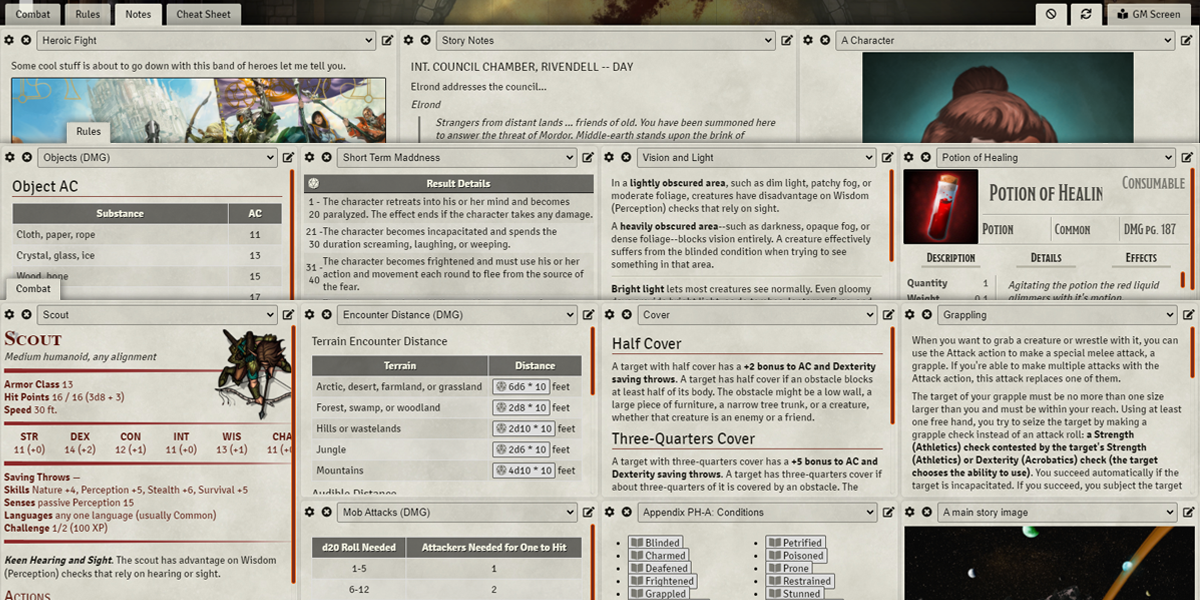
GM Screen gives you a grid of your most used references right inside Foundry VTT: party and monster sheets, session notes, rules, and roll tables, all in a drawer that slides up from the bottom of the screen. It's like the screen at a real table, but at the virtual tabletop. You can roll attacks straight from the screen, draw from roll tables, and add a shared tab so your players get their own Player Screen.
It's one of the picks in Baileywiki's Top 5 Quality of Life Modules for Running the Game loadout.
TL;DR
- Install and enable GM Screen, then open the GM Screen drawer at the bottom of the screen.
- Drag journal entries, actors, items or roll tables from your world or a compendium onto any cell.
- Use the cog on a cell to span it across more columns and rows, and Clear to reset the whole tab.
- In Game Settings, set the default grid size, drawer size and opacity, or turn the drawer off to use it as a pop-out window.
- Add tabs in the tabs config, and mark one as Shared to give players their own Player Screen.
What GM Screen looks like at the table
A simple one-page screen is enough for most sessions. In the video, Zephyr's screen holds a party actor, the enemies likely to show up that night (an ancient blue dragon and a dragon turtle), and a session notes journal.
- Actors are fully usable. You can make attacks and rolls directly from the screen, so you can run combat without opening sheets.
- D&D 5e gets a stat block view. On 5e you can switch an actor cell to a readable stat block, like the ones embedded in journals, instead of the full character sheet. Every system shows its full sheets.
- Journals work like the real thing. Links inside a journal entry open character sheets just as they would in the normal journal window.
- Open the full sheet anytime. The button in the top right corner of each cell opens the full actor, journal or item sheet so you can edit it or add pages.
Basic functions and setup
Hover over an empty cell and GM Screen reminds you what it accepts: a journal entry, rollable table, actor, or item, from your world or from a compendium. Drag one onto a cell and it appears there. Compendium entries stay linked to the compendium.
Resize cells. Some sheets look cramped in a small cell, depending on your system and other modules. Click the cog (configure column and row spanning) on a cell and set it to, say, 2 by 2 for a bigger, easier to read view.
Replace or clear content. Dragging something new onto a filled cell replaces it, so you don't have to clear it first. The clear cell button removes the content but keeps the cell's size. To undo the sizing, open the cog and set it back to the default.
Reset the whole tab. The Clear button in the screen's header empties every cell on that tab and resets all the sizes. It's the quick fix if you spanned a cell so wide that you can't reach the others.
Roll tables work in place. Drop in a table like common loot and draw results directly from the screen.
Watch out when dropping items onto actors. Because dropping replaces the cell, dragging an item onto an actor in GM Screen swaps the actor out instead of giving it the item. Items also can't be used from the screen. Open the full sheet for that.
GM Screen settings
Open Game Settings and find GM Screen.
- Default columns and rows. Set the grid size for every tab, for example 4 by 4. Save and refresh to see the new cells.
- Display as a drawer. On by default, this is what makes the screen slide up and down. Turn it off and reload, and GM Screen becomes a button in the Journal sidebar that opens it as a pop-out dialog. That's handy with Foundry v14's detached window option (or the PopOut module on v13) to move the screen onto another monitor. Drag and drop doesn't work once it's detached, so fill it first.
- Drawer options. With the drawer on, you can change the right margin, width, height and opacity. A fully raised drawer covers the chat log, so a lower height or bigger right margin keeps chat visible. Width is measured from the left side of the screen, so lower it if you need to see something in the lower left. These need a full reload, not just the refresh button.
- Condensed GM Screen button. Removes the text from the drawer button for a lower profile.
All of these display settings are client side. Each GM and player sets their own, and they don't affect anyone else.
Reset as a last resort. Changing the number of columns or rows can cause problems for cells that already have content or custom spans. Try the Clear button first. If that's not enough, the reset option in the settings resets all your grid cells without changing your other settings.
A more advanced setup with multiple tabs
Tabs let you keep separate screens and cycle between them. Zephyr's example uses three:
- Main: general references like stat blocks, loot tables, bandit motivations, and the party.
- Sessions: the prepared encounter, notes from earlier sessions, this session's plan and plot beats, and lore to drop on the players.
- Quick refs (shared): what the players can see, including the party, house rulings, a weekly almanac and today's date from Calendaria, and party notes.
On the player side, only the shared tab appears, and it respects permissions. Player one sees their own character and their own notes, but not the other players' notes. Players can also click any link that a journal entry contains, so a shared tab works well as a set of quick links to rules that don't come up often.
Configuring tabs and the Player Screen
Open the grid tabs config from the GM Screen settings. You start with one Main tab. Add as many as you like, and give any tab its own columns and rows override. Faded numbers mean the tab is using your defaults, so they follow any change to the defaults. Typed numbers are fixed. You can override just one of the two.
Tick Shared on a tab and players get their own Player Screen with that tab in it. Tab changes don't need a full reload. They show up the next time you open GM Screen.
Things to know when building a shared tab:
- Players can't resize cells. Configure column and row spanning isn't available to them, so set up the sizes yourself.
- Check permissions. A journal entry players can't access still shows its title, but none of its pages. An actor they can't see is fully hidden, name included. Only put things players have permission to see, so you don't tip your hand or leave odd blank blocks.
- What players can do. They can open full sheets, click into linked character sheets, and press refresh to pick up changes after you edit permissions or content. They can change how the screen looks on their side, but they can't configure cells, reset the screen, or change the number of cells or tabs.
Tips and considerations
- Reorder tabs by dragging the handles in the tabs config. A tab you just added isn't draggable until you save and reopen the config.
- One journal entry, one tab (for the GM). If the same journal entry sits on several tabs, the GM only sees it on the first tab that has it. Players still see it on their shared tab. Keep duplicates split between your own tabs and the players' tabs and it won't matter.
- Go low profile. Several small tabs with a low drawer height give you quick references while keeping most of the scene in view.
Related guides
Featured modules
Frequently asked questions
Does GM Screen work with any game system?
Yes. It accepts journal entries, actors, items and roll tables from any system. D&D 5e adds an optional stat block view for actors.
Can players use GM Screen?
Yes. Mark a tab as Shared and players get a Player Screen with that tab. They only see content they have permission to view.
Can I roll from GM Screen?
Yes. Actor cells are fully interactive, so attacks and rolls work from the screen, and you can draw from roll tables. Items in a cell can't be used directly.
Why can't I see the chat log when GM Screen is open?
The drawer covers it at full height. Lower the drawer height or raise the right margin in the GM Screen settings, then reload.
Can I put GM Screen on a second monitor?
Yes. Turn off Display as a drawer, open it from the Journal sidebar, and use Foundry v14's detached window (or PopOut on v13). Drag and drop doesn't work while it's detached.
Why is a journal entry missing from one of my tabs?
As the GM, you only see an entry on the first tab that contains it. Remove the duplicate or keep it on a player tab.